


Download Logitech Options – Customizable Keyboard, Mouse & Touchpad Software
Overview
Logitech Options is a free, secure utility tool designed specifically for Logitech’s range of keyboards, mice, and touchpads. The application gives you granular control over every button, gesture, and scroll function, letting you tailor each device to the way you work or play. Whether you’re a graphic designer who needs custom shortcuts for Photoshop, a programmer who wants a dedicated “build” key, or a casual user who simply wishes to speed up everyday tasks, Logitech Options centralises all configuration options in a single, intuitive interface.
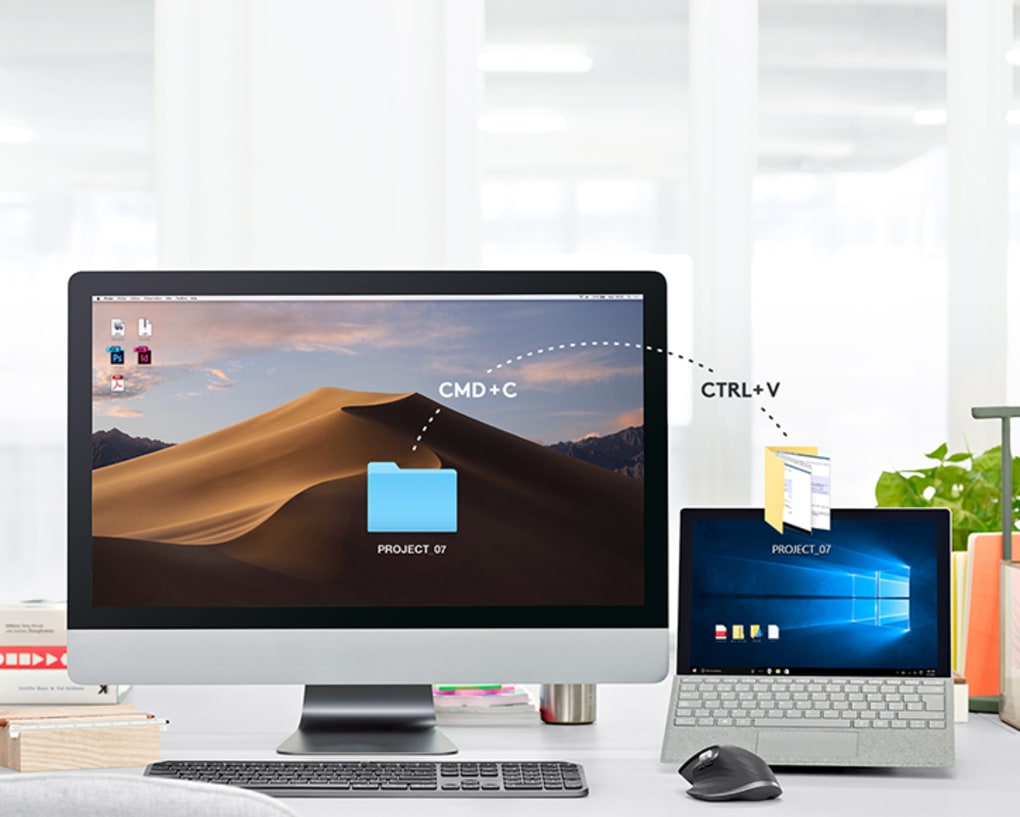
Once you log in with your Logitech account, the software automatically detects compatible peripherals, presents real‑time status information (battery level, Caps Lock state, connection quality) and lets you create application‑specific profiles that switch instantly when you launch a program. All settings can be saved to the cloud, making it easy to restore your favourite layouts on a new computer or after a fresh OS install. While the tool excels at flexibility, it does have a few quirks – notably, unsynchronising a device requires navigating the advanced settings menu, which can be unintuitive for first‑time users.
Overall, Logitech Options is a must‑have companion for anyone who relies on Logitech hardware and wants to squeeze every ounce of productivity out of it.
Key Features That Set Logitech Options Apart
- Application‑Specific Profiles: Assign unique button mappings, pointer speeds, and gestures for each program you use. Switches automatically when the app gains focus.
- Cloud Sync & Backup: Store your custom configurations on Logitech’s secure cloud, enabling instant restoration on any device.
- Advanced Button Reassignment: Remap any mouse button or keyboard key to launch apps, execute macros, or perform system commands.
- Scroll Wheel Customisation: Choose between smooth, click‑free scrolling or traditional click steps, with adjustable speed and direction.
- Gesture Support for Touchpads: Create three‑finger or four‑finger gestures to control volume, media playback, or desktop navigation.
- Battery & Status Indicators: Real‑time display of battery life, connection strength, and Caps Lock status directly inside the app.
- Trackpad Automation: Record repetitive cursor movements and replay them with a single click, ideal for data entry or testing.
- Multi‑Device Management: Add, rename, and organise multiple Logitech devices from one dashboard, even if they are on different computers.
- Secure Login & Account Integration: Use your existing Logitech account for authentication, ensuring your settings remain private and encrypted.
- Regular Firmware Updates: Receive automatic updates that improve device stability, add new features, and fix bugs.
Installation, Setup & Daily Usage Guide
Step‑by‑Step Installation
- Visit the official Logitech website and navigate to the Logitech Options download page.
- Choose the version that matches your operating system (Windows 10/11 or macOS 10.15+). Click “Download” and save the installer.
- Run the installer. Windows users will see a typical UAC prompt; macOS users will need to allow the app in System Preferences → Security & Privacy.
- Follow the on‑screen wizard – it will automatically detect any connected Logitech peripherals.
- When prompted, sign in with your existing Logitech account or create a new one using a valid email address.
First‑Time Configuration
After logging in, the dashboard shows a list of detected devices. Click the Add Device button if a peripheral is not automatically recognised. Once added, select a device to open its configuration panel. Here you can:
- Reassign buttons by dragging the desired function onto the visual representation of the mouse or keyboard.
- Adjust pointer speed with a slider, and enable “Smart Shift” for dynamic acceleration.
- Create a new application profile by clicking + Add App, then browse to the executable file of the program you want to customise.
- Set up gestures in the Touchpad tab – simply choose a gesture and assign an action from the dropdown menu.
Everyday Workflow Tips
To make the most of Logitech Options, consider the following habits:
- Backup regularly: Use the Cloud Sync button after major changes to ensure your settings are saved.
- Leverage application profiles: Assign a “Copy‑Paste‑Paste‑Special” macro to a spare mouse button for Excel power users.
- Monitor battery health: The status bar updates in real time – set a low‑battery alert to avoid unexpected disconnects.
- Utilise trackpad automation: Record a repetitive navigation path once, then replay it with a single click.
When you’re finished, close the app – all changes are applied instantly, and the software runs quietly in the background, ready to switch profiles as you move between applications.
Compatibility, Pros & Cons
Logitech Options supports Windows 10, Windows 11, and macOS 10.15 Catalina or later. The software works with a wide range of Logitech devices, including the MX Master series, MX Anywhere, Craft keyboards, and Touchpad models. While most newer peripherals are fully compatible, a handful of older devices may only receive limited functionality.
Pros
- Highly granular button and gesture customization.
- Application‑specific profiles that auto‑switch.
- Cloud backup ensures settings are never lost.
- Real‑time device status (battery, caps lock, connection).
- Free to download, with regular firmware updates.
Cons
- Unsynchronising a device requires navigating the advanced settings tab.
- Interface can feel cluttered for beginners.
- Limited support for non‑Logitech devices.
- Occasional latency when applying complex macros.
- Requires a Logitech account; no offline-only mode.
Logitech Options delivers an impressive suite of customization tools that transform ordinary peripherals into productivity powerhouses. The cloud sync feature stands out as a genuine time‑saver, while the application‑specific profiles make multitasking feel seamless. The main drawbacks are the slightly unintuitive device removal process and a learning curve for users unfamiliar with deep hardware configuration. Overall, it earns a solid 4.5 out of 5 for feature depth, reliability, and ease of use for power users.
FAQ – Frequently Asked Questions
Do I need a Logitech account to use Logitech Options?
Yes, a Logitech account is required for cloud sync, device detection, and firmware updates. You can create a free account during the first launch of the software.Can I use Logitech Options on Linux?
Officially, Logitech Options is only supported on Windows and macOS. Some Linux users report partial functionality via third‑party tools, but full feature parity is not guaranteed.How do I delete a device that I no longer use?
Open the Advanced Configuration tab, select the device, and follow the guided steps to unpair it. The process involves confirming the removal, after which the device disappears from the dashboard.Is Logitech Options free, or does it require a subscription?
Logitech Options is completely free to download and use. All features, including cloud backup, are available without any subscription fees.Can I export my configuration to share with a colleague?
Yes. Within the settings menu, you can export your profiles as a .json file and import them on another computer running Logitech Options.Conclusion & Call to Action
Logitech Options stands out as a robust, free solution for anyone looking to unlock the full potential of their Logitech keyboards, mice, and touchpads. Its combination of application‑specific profiles, cloud backup, and detailed device monitoring makes it a valuable addition to both professional and home setups. While the removal process for unused devices could be streamlined, the overall experience is polished and reliable. If you already own a Logitech peripheral—or are considering adding one to your workflow—downloading Logitech Options today will give you immediate control over every button, gesture, and scroll function. Download now, customise your gear, and boost your productivity in minutes.







